Chapter 12: Unity UI: User Events and Dynamic Story Loading
Objectives
- Implement event listeners using AddListener() for Button onClick events
- Utilize UnityAction delegates and lambda expressions for event handling
- Execute ChooseChoiceIndex() through button interactions
- Destroy dynamically created GameObjects to refresh UI
- Create text elements dynamically to display story content
- Apply the event-driven pattern for interactive storytelling
Table of Contents
User Events
All user interface GameObjects have access to user events. In fact, in a previous chapter when a Canvas GameObject was added to the Scene, an additional GameObject, Event System, was added to the Scene. This provides access to user events and helps in responding to them internally.
Like GameObjects have access to the methods Start() and Update(), user interface GameObjects have access to different user event properties. For a Button, the event is OnClick. If a method is used with this property, it will be called when the user clicks the button.
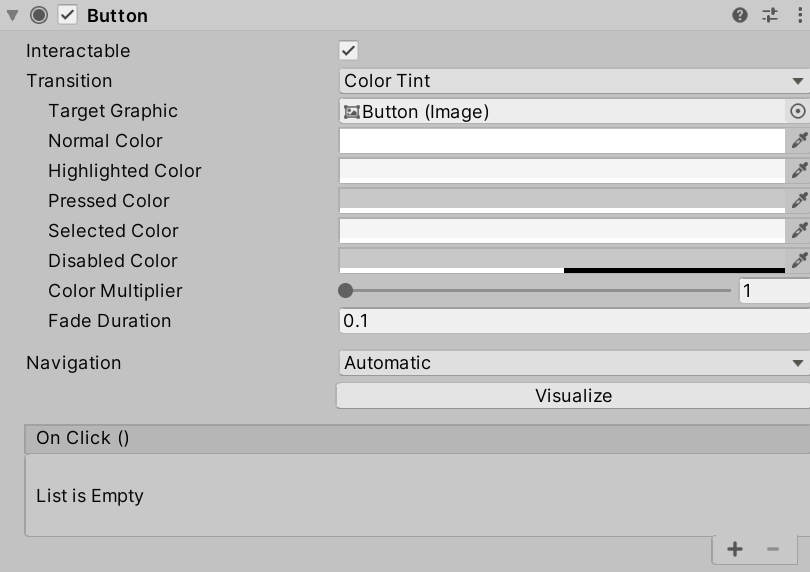
In the Inspector window of a Button is an area named “On Click ()” and lists all methods that are called when the user event happens to the Button.
However, as was changed in the last chapter, the Button is a Prefab and is created dynamically as part of the code that was added at the end of the last chapter.
// For each choice in currentChoices, set its values to the new variable 'choice'
foreach (Choice choice in exampleStory.currentChoices)
{
    // Create a new GameObject based on a Prefab and set its parent to this.transform
    Button choiceButton = Instantiate(ButtonPrefab, this.transform);

    // From choiceButton, look in its children for a component of the type "Text".
    // Return a reference to this component and save it locally.
    Text choiceText = choiceButton.GetComponentInChildren<Text>();

    // Set the button's text to the choice's text
    choiceText.text = choice.text;
}
Adding Event Listeners
In Unity terminology, an event listener is a method or other section of code that “listens” for an event and then acts in some way. Event listeners are added to an event so that they are called when the event happens.
The method AddListener() is available on all objects that inherit from UnityEvent. The property of all Buttons, onClick, is a UnityEvent, which means it has access to this method.
Note: As of 2025, while delegates and UnityActions remain valid, many developers also use lambda expressions and action delegates for cleaner, more modern code patterns.
// Create a new GameObject based on a Prefab and set its parent to this.transform
Button choiceButton = Instantiate(ButtonPrefab, this.transform);

choiceButton.onClick.AddListener();
The method AddListener() accepts the parameter of a data type called UnityAction. This is a special object that allows for concentrating methods into a list and then calling them in sequence when an event happens.
Internally, all UnityAction objects are delegates. In C#, a delegate is a special keyword that allows for passing a method as a parameter. In other words, instead of passing a value to a method, another method is passed to it instead.
Note: As of C# 9.0 (2025), modern patterns often use lambda expressions (
() => {}) or local functions instead of explicit delegate declarations for cleaner, more readable code.
However, in using delegate, there is an important requirement to remember: using a delegate means the method cannot have a return type. Any method used with the keyword returns a delegate. This allows for methods to be chained, but also, in practice, means methods used with the keyword return void.
In C#, a method cannot be defined inside of another method. This means that a method needs to be added to the NewBehaviourScript object and delegated to the AddListener() method to be called when the event happens.
void ButtonClickListener()
{
  Debug.Log("Testing");
}
In the above method ButtonClickListener(), its internal code will call Debug.Log() and write the word “Testing” in the Console window. This will serve as evidence tha the method is being called corrected.
With the use of delegate, the new code inside of the choice-parsing loop will call the new method ButtonClickListener().
// For each choice in currentChoices, set its values to the new variable 'choice'
foreach (Choice choice in exampleStory.currentChoices)
{
    // Create a new GameObject based on a Prefab and set its parent to this.transform
    Button choiceButton = Instantiate(ButtonPrefab, this.transform);

    // Add a delegate as an event listener
    choiceButton.onClick.AddListener(delegate {

      // Call the method ButtonClickListener()
      ButtonClickListener();

    });

    // From choiceButton, look in its children for a component of the type "Text".
    // Return a reference to this component and save it locally.
    Text choiceText = choiceButton.GetComponentInChildren<Text>();

    // Set the button's text to the choice's text
    choiceText.text = choice.text;
}
Put together with the code from the last chapter, it is the following:
using System.Collections;
using System.Collections.Generic;
using UnityEngine;
// Add the Ink Runtime
using Ink.Runtime;
// Add Unity UI
using UnityEngine.UI;

public class NewBehaviourScript : MonoBehaviour
{
    // Add a TextAsset representing the compiled Ink Asset
    public TextAsset InkJSONAsset;

    // Add a Button representing the ButtonPrefab
    public Button ButtonPrefab;

    // Start is called before the first frame update
    void Start()
    {
        // Create a new Story object using the compiled (JSON) Ink story text
        Story exampleStory = new Story(InkJSONAsset.text);

        // From this GameObject, look in its children for a component of the type "Text".
        // Return a reference to this component and save it locally.
        Text childText = GetComponentInChildren<Text>();

        // Reset the existing text of "New Text" to an empty string
        childText.text = "";

        // Each loop, check if there is more story to load
        while (exampleStory.canContinue)
        {
            // Load the next story chunk and return the current text
            string currentTextChunk = exampleStory.Continue();

            // Get any tags loaded in the current story chunk
            List<string> currentTags = exampleStory.currentTags;

            // Create a blank line of dialogue
            string line = "";

            // For each tag in currentTag, set its values to the new variable 'tag'
            foreach (string tag in currentTags)
            {
                // Concatenate the tag and a colon
                line += tag + ": ";
            }

            // Concatenate the current text chunk
            // (This will either have a tag before it or be by itself.)
            line += currentTextChunk;

            // Concatenate the content of 'line' to the existing text
            childText.text += line;

            // For each choice in currentChoices, set its values to the new variable 'choice'
            foreach (Choice choice in exampleStory.currentChoices)
            {
                // Create a new GameObject based on a Prefab and set its parent to this.transform
                Button choiceButton = Instantiate(ButtonPrefab, this.transform);

                // Add a delegate as an event listener
                choiceButton.onClick.AddListener(delegate {

                    // Call the method ButtonClickListener()
                    ButtonClickListener();

                });

                // From choiceButton, look in its children for a component of the type "Text".
                // Return a reference to this component and save it locally.
                Text choiceText = choiceButton.GetComponentInChildren<Text>();

                // Set the button's text to the choice's text
                choiceText.text = choice.text;
            }

        }
    }

    void ButtonClickListener()
    {
        Debug.Log("Testing");
    }
}
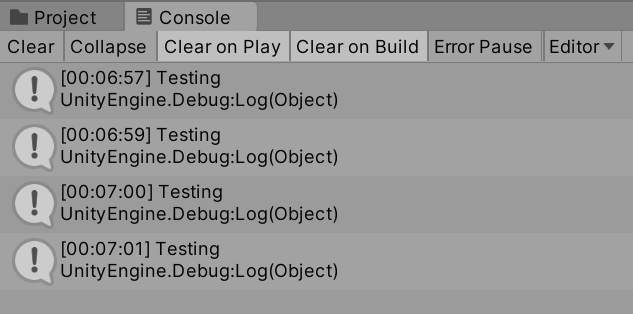
When any of the generated Button GameObjects are clicked, the method ButtonClickListener() is called. This produces the string value “Testing” in the Console window.
Choosing Choices
In a previous chapter, the Ink Story API method ChooseChoiceIndex() was introduced. When given an Choice index within the current set of choice, it will branch the story to that point.
Building from the previous code, a new method ButtonClickListener() was added. This was used in connection with Debug.Log() to show how a delegate could call a method (that called a method). This testing method is no longer needed. Instead, the method ChooseChoiceIndex() can be called from inside of the delegate itself.
There is now a problem. ChooseChoiceIndex() needs an index value. To fix this, the current Choice index can be passed to it.
// Add a delegate as an event listener
choiceButton.onClick.AddListener(delegate {

  // Call the method ChooseChoiceIndex() with the current choice index
  exampleStory.ChooseChoiceIndex(choice.index);

});
While valid, the new code will also eventually produce a problem. A Button can be clicked, and the Ink story will branch, but there is no evidence the change has happened.
The current story will be loaded up to the first set of choices. These will, in turn, be parsed and new Button GameObjects created. Each will have its own delegate tied to its index and allowing a user to click it and branch the story. However, there is no evidence this happens. The Text does not update!
Refreshing User Interfaces
In the current code, there is no way to signal that a new chunk of the Ink story should be loaded based on a branching event. Things are loaded and, if there are choices, Buttons are created. There needs to be a way to refresh the Text and Buttons.
As there is now a need for a section of code that will be used in different places, it is time to create a new method, Refresh(), in the NewBehaviourScript class. Its purpose will be to load the next story chunk, updating the Text, and creating any Buttons as needed.
In fact, all of the outer loop, while() code, can be cut and pasted into this new method.
void Refresh()
{
  // Each loop, check if there is more story to load
  while (exampleStory.canContinue)
  {
    // Load the next story chunk and return the current text
    string currentTextChunk = exampleStory.Continue();

    // Get any tags loaded in the current story chunk
    List<string> currentTags = exampleStory.currentTags;

    // Create a blank line of dialogue
    string line = "";

    // For each tag in currentTag, set its values to the new variable 'tag'
    foreach (string tag in currentTags)
    {
      // Concatenate the tag and a colon
      line += tag + ": ";
    }

    // Concatenate the current text chunk
    // (This will either have a tag before it or be by itself.)
    line += currentTextChunk;

    // Concatenate the content of 'line' to the existing text
    childText.text += line;

    // For each choice in currentChoices, set its values to the new variable 'choice'
    foreach (Choice choice in exampleStory.currentChoices)
    {
      // Create a new GameObject based on a Prefab and set its parent to this.transform
      Button choiceButton = Instantiate(ButtonPrefab, this.transform);

      // Add a delegate as an event listener
      choiceButton.onClick.AddListener(delegate {

        // Call the method ChooseChoiceIndex() with the current choice index
        exampleStory.ChooseChoiceIndex(choice.index);

      });

      // From choiceButton, look in its children for a component of the type "Text".
      // Return a reference to this component and save it locally.
      Text choiceText = choiceButton.GetComponentInChildren<Text>();

      // Set the button's text to the choice's text
      choiceText.text = choice.text;
    }

  }
}
However, in trying to run the new code, a new issue appears. The object exampleStory does not exist inside of the context of Refresh(). After all, it appears before the outer loop and its definition was not copied over.
While it may make sense to just copy the line into Refresh(), its purpose is to “refresh”, not reload the story. Instead, to fix this issue, the object exampleStory needs to become a private property of the NewBehaviourScript class. This would change its scope (level of access) and allow both the Start() and newer Refresh() methods access to it.
This is an easy change.
public class NewBehaviourScript : MonoBehaviour
{
    // Add a TextAsset representing the compiled Ink Asset
    public TextAsset InkJSONAsset;

    // Add a Button representing the ButtonPrefab
    public Button ButtonPrefab;

    // Add a Story
    private Story exampleStory;

    //...
}
Following this change, another develops. The object childText does not exist in the method Refresh(). It is created in the Start() method.
This can be fixed in the same way as exampleStory was. It can be added as a private property of the class.
public class NewBehaviourScript : MonoBehaviour
{
    // Add a TextAsset representing the compiled Ink Asset
    public TextAsset InkJSONAsset;

    // Add a Button representing the ButtonPrefab
    public Button ButtonPrefab;

    // Add a Story
    private Story exampleStory;

    // Add a Text
    private Text childText;
}
Now, with the new method Refresh() and the two new private properties, one final change is needed. The method Refresh() needs to be called from Start().
// Start is called before the first frame update
void Start()
{
  // Create a new Story object using the compiled (JSON) Ink story text
  exampleStory = new Story(InkJSONAsset.text);

  // From this GameObject, look in its children for a component of the type "Text".
  // Return a reference to this component and save it locally.
  childText = GetComponentInChildren<Text>();

  // Reset the existing text of "New Text" to an empty string
  childText.text = "";

  // Load the story for the first time
  Refresh();
}
Now, running the Scene will produce the same outcome it did before.
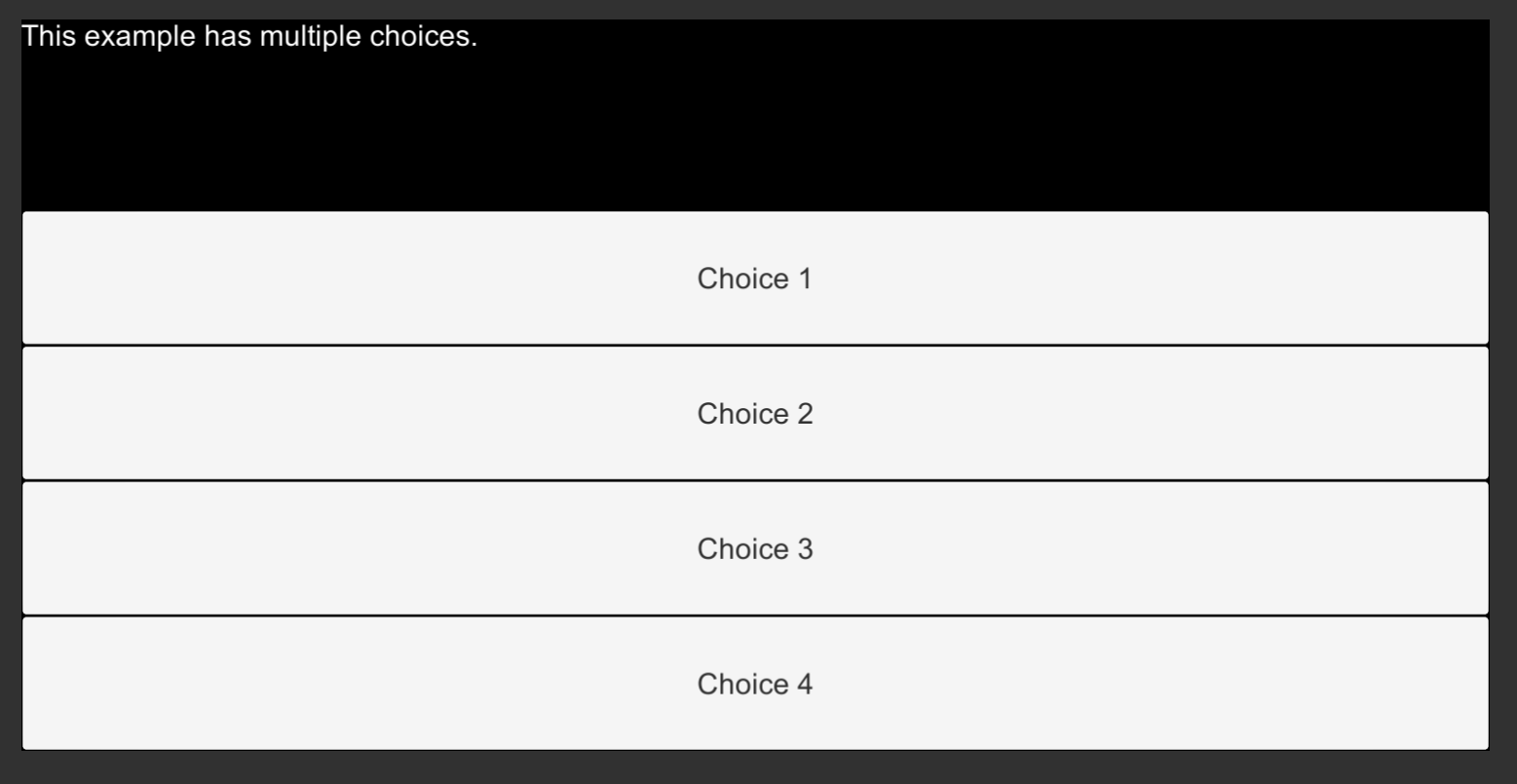
The Ink story will be loaded and its text and choices will be parsed. However, clicking on a button more than once will cause an error: “choice out of range.”
This is happening because the content of the Canvas is not being updated. The method Refresh() needs to be called after a choice is made.
// Add a delegate as an event listener
choiceButton.onClick.AddListener(delegate {

  // Call the method ChooseChoiceIndex() with the current choice index
  exampleStory.ChooseChoiceIndex(choice.index);

  // Refresh the text and choices
  Refresh();

});
Running the Scene with this change shows that the initial text of “This example has multiple choices.” is shown along with the text of any choice when clicked.
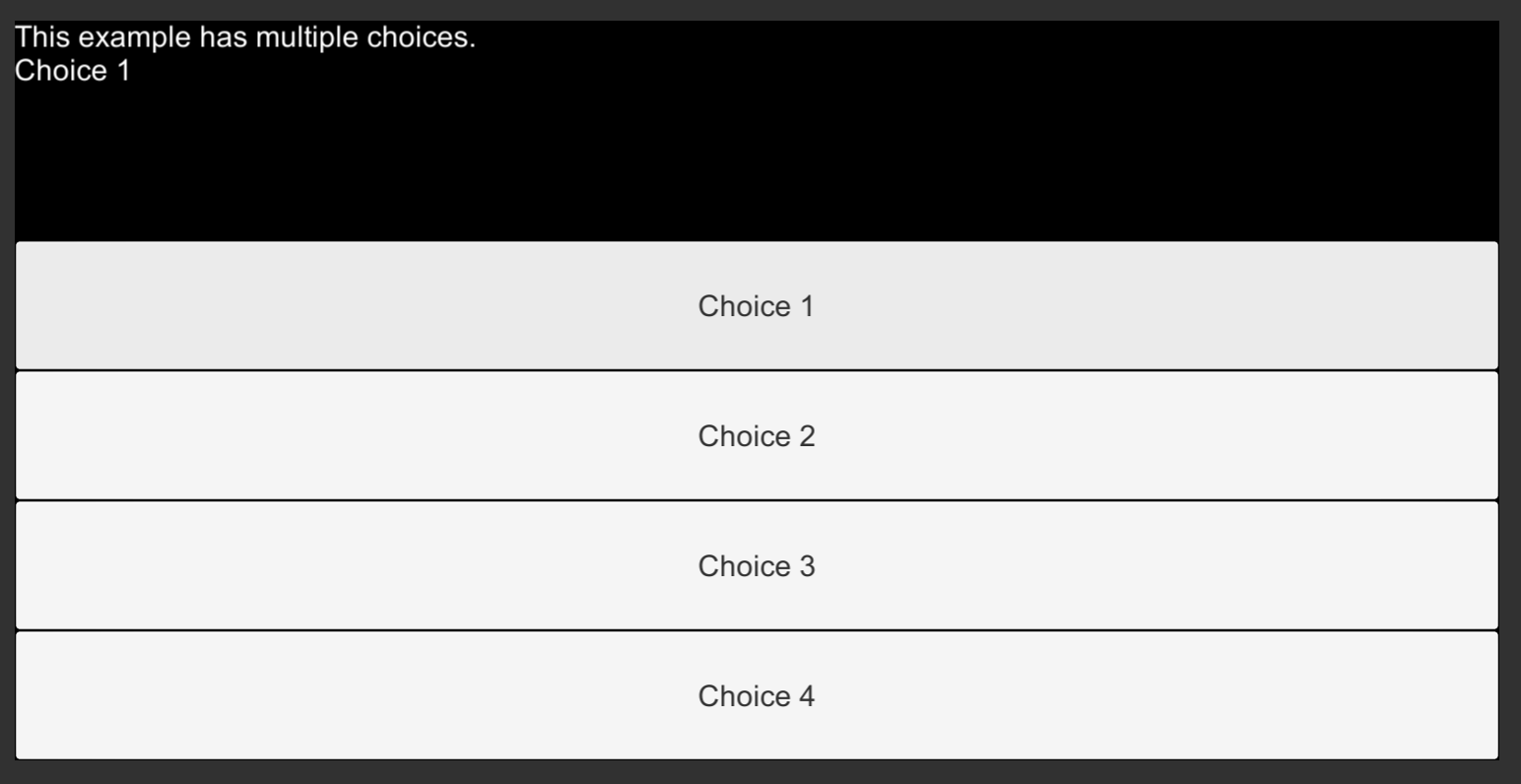
However, the issue still remains. Clicking a button multiple time produces an error: “choice out of range.” The problem this time is not with refreshing the text content. That now works. The issue is with the buttons. After being clicked, they should not still exist. Once used, they should be destroyed.
Destroying Buttons
In Unity, all of the children of a parent GameObject are part of its transform. One way to access them, therefore, is to iterate over them using a foreach() statement.
// For each Transform object in transform, set its values to the new variable 'child'
foreach (Transform child in transform)
{
}
The method Destroy(), like Instantiate(), is available to all GameObjects. However, instead of creating new GameObjects like Instantiate(), the method Destroy() removes them from the Scene.
Each Transform object also has access to a property gameObject that is the GameObject it is attached to.
Using these two bits of information, the method Destroy() can be called to remove a GameObject via an existing Transform object through referring to its gameObject property.
// For each Transform object in transform, set its values to the new variable 'child'
foreach (Transform child in transform)
{
  // Destroy the GameObject associated with the transform
  Destroy(child.gameObject);
}
Placing this new code inside of the delegate, the operations are now to make a choice, remove the current children of the Canvas, and then load the next part of the Story.
NewBehaviourScript.cs:
using System.Collections;
using System.Collections.Generic;
using UnityEngine;
// Add the Ink Runtime
using Ink.Runtime;
// Add Unity UI
using UnityEngine.UI;

public class NewBehaviourScript : MonoBehaviour
{
    // Add a TextAsset representing the compiled Ink Asset
    public TextAsset InkJSONAsset;

    // Add a Button representing the ButtonPrefab
    public Button ButtonPrefab;

    // Add a Story
    private Story exampleStory;

    // Add a Text
    private Text childText;

    // Start is called before the first frame update
    void Start()
    {
        // Create a new Story object using the compiled (JSON) Ink story text
        exampleStory = new Story(InkJSONAsset.text);

        // From this GameObject, look in its children for a component of the type "Text".
        // Return a reference to this component and save it locally.
        childText = GetComponentInChildren<Text>();

        // Reset the existing text of "New Text" to an empty string
        childText.text = "";

        // Load the story for the first time
        Refresh();
    }

    void Refresh()
    {
        // Each loop, check if there is more story to load
        while (exampleStory.canContinue)
        {
            // Load the next story chunk and return the current text
            string currentTextChunk = exampleStory.Continue();

            // Get any tags loaded in the current story chunk
            List<string> currentTags = exampleStory.currentTags;

            // Create a blank line of dialogue
            string line = "";

            // For each tag in currentTag, set its values to the new variable 'tag'
            foreach (string tag in currentTags)
            {
                // Concatenate the tag and a colon
                line += tag + ": ";
            }

            // Concatenate the current text chunk
            // (This will either have a tag before it or be by itself.)
            line += currentTextChunk;

            // Concatenate the content of 'line' to the existing text
            childText.text += line;

            // For each choice in currentChoices, set its values to the new variable 'choice'
            foreach (Choice choice in exampleStory.currentChoices)
            {
                // Create a new GameObject based on a Prefab and set its parent to this.transform
                Button choiceButton = Instantiate(ButtonPrefab, this.transform);

                // Add a delegate as an event listener
                choiceButton.onClick.AddListener(delegate {

                    // Call the method ChooseChoiceIndex() with the current choice index
                    exampleStory.ChooseChoiceIndex(choice.index);

                    // For each Transform object in transform, set its values to the new variable 'child'
                    foreach (Transform child in transform)
                    {
                        // Destroy the GameObject associated with the transform
                        Destroy(child.gameObject);
                    }

                    // Refresh the text and choices
                    Refresh();

                });

                // From choiceButton, look in its children for a component of the type "Text".
                // Return a reference to this component and save it locally.
                Text choiceText = choiceButton.GetComponentInChildren<Text>();

                // Set the button's text to the choice's text
                choiceText.text = choice.text;
            }

        }
    }
}
When run and a choice made (through clicking on a button) does just that. The Canvas is cleared after the user clicks on a Button.

Currently, however, there is no more story to load in the Ink file. That can be fixed through adding more to load.
New Ink.ink:
This example has four choices.

* Choice 1
* Choice 2
* Choice 3
* Choice 4
-

This example has three choices

* First
* Second
* Third
-

This example has two choices

* 1st
* 2nd
-
With more story to load, the new code will load the next part of the story after a choice is made.
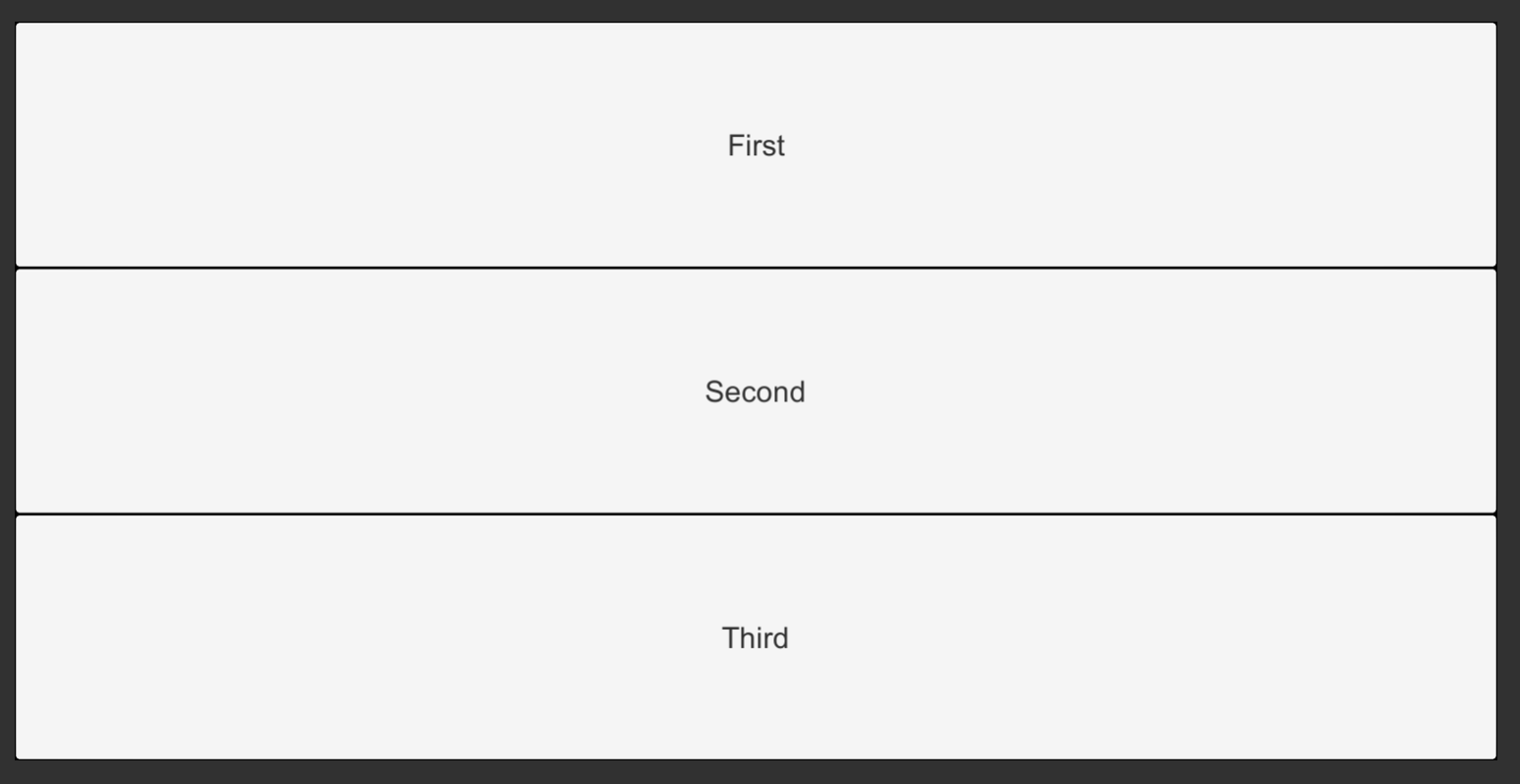
This time, the code only seems to load the choices and not the text. Internally, though, the text is being loaded. It is just that the code no longer has access to Text. It was destroyed along with all of the other children.
Creating Text
One solution to the problem would be to prevent Text from being destroyed along with all of the other children. However, there is also another solution: make Text a Prefab. That way, along with Button, it could be created and destroyed as needed.
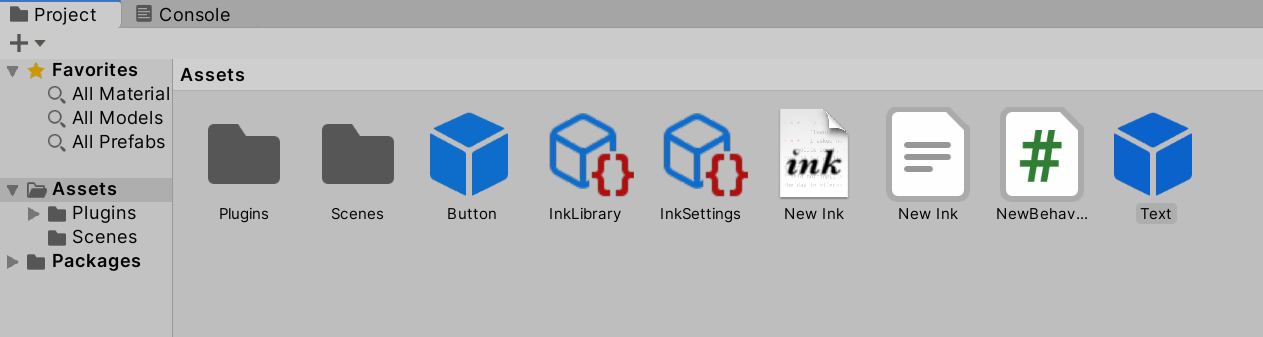
To make this change, drag and drop the existing Text GameObject into the Project window.
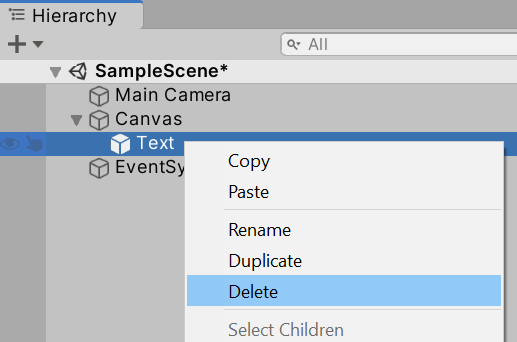
Then, right-click on the Text GameObject and click on “Delete”.
Next, add a public property to represent the Text Prefab in the existing code.
public class NewBehaviourScript : MonoBehaviour
{
    // Add a TextAsset representing the compiled Ink Asset
    public TextAsset InkJSONAsset;

    // Add a Button representing the ButtonPrefab
    public Button ButtonPrefab;

    // Add a Text representing the Text Prefab
    public Text TextPrefab;

    // Add a Story
    private Story exampleStory;

    // Add a Text
    private Text childText;
}
Like was done with the Button Prefab in a previous chapter, drag and drop the Text Prefab from the Project window onto the new property in the Canvas Inspector window.

With the Text Prefab associated with the property, it is time to change the rest of the code.
Two major changes need to be made around how Text is now handled. Previously, the method GetComponentInChildren<Text>() was used to search for the Text GameObject as part of Start(). This is no longer needed and should be removed.
Second, the method Instantiate() needs to be used as part of the Refresh() method to create a new Text GameObject. The object childText is already part of the class, so code can be changed to use this existing object without changing other lines of code.
// Start is called before the first frame update
void Start()
{
  // Create a new Story object using the compiled (JSON) Ink story text
  exampleStory = new Story(InkJSONAsset.text);

  // Load the story for the first time
  Refresh();
}

void Refresh()
{
  // Create a new GameObject based on a Prefab and set its parent to this.transform
  childText = Instantiate(TextPrefab, this.transform);

  // Reset the existing text of "New Text" to an empty string
  childText.text = "";

  // ...
}
In the updated code, the Start() method loads the compiled Ink (JSON) file and calls Refresh(), which handles parsing the Ink story and creating Text and Button GameObjects as needed.
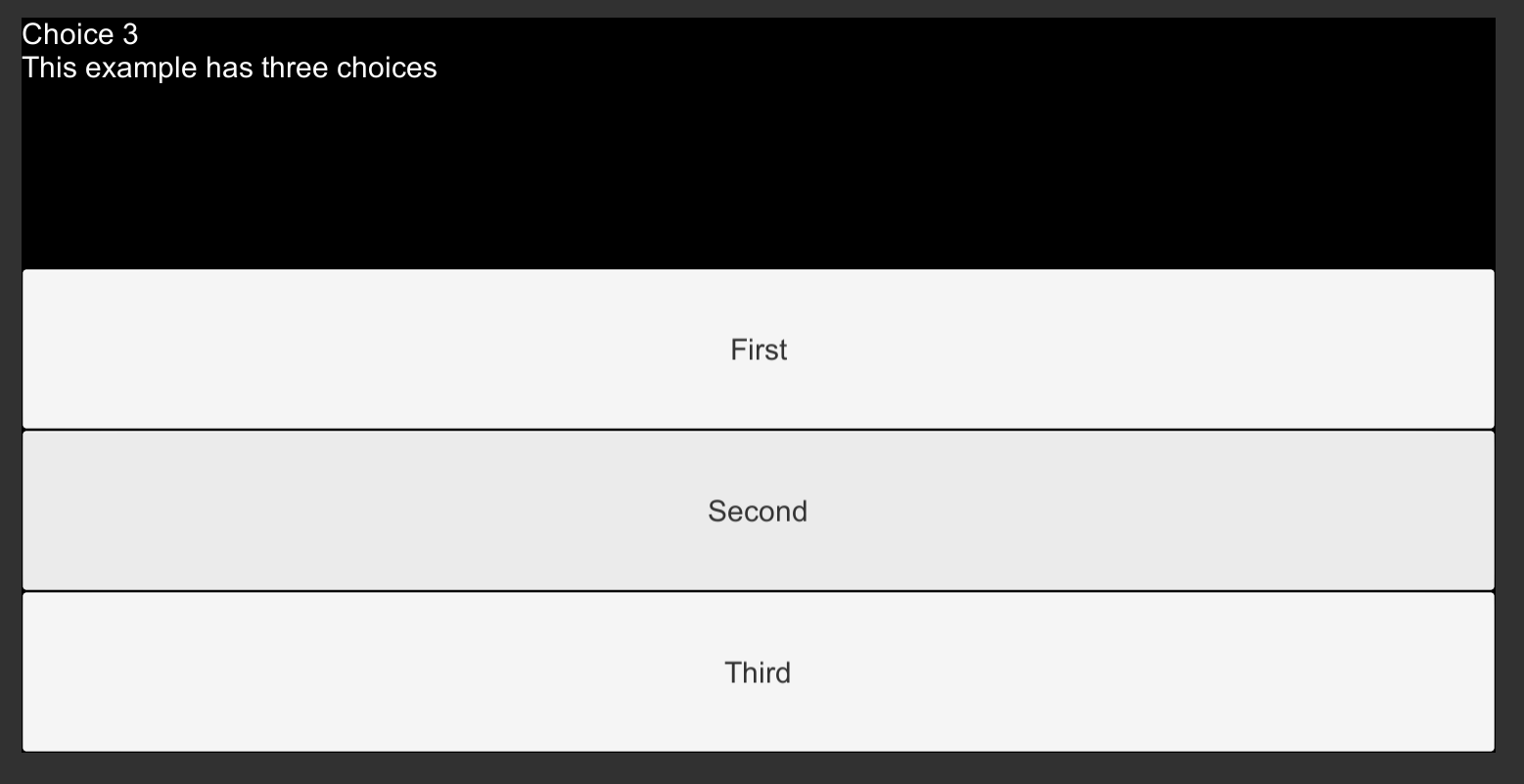
The new code dynamically creates GameObjects, destroys them when they are no longer needed, and will use the Ink Story API to load and parse both text content and choices as they are encountered.
NewBehaviourScript.cs:
using System.Collections;
using System.Collections.Generic;
using UnityEngine;
// Add the Ink Runtime
using Ink.Runtime;
// Add Unity UI
using UnityEngine.UI;

public class NewBehaviourScript : MonoBehaviour
{
    // Add a TextAsset representing the compiled Ink Asset
    public TextAsset InkJSONAsset;

    // Add a Button representing the Button Prefab
    public Button ButtonPrefab;

    // Add a Text representing the Text Prefab
    public Text TextPrefab;

    // Add a Story
    private Story exampleStory;

    // Add a Text
    private Text childText;

    // Start is called before the first frame update
    void Start()
    {
        // Create a new Story object using the compiled (JSON) Ink story text
        exampleStory = new Story(InkJSONAsset.text);

        // Load the story for the first time
        Refresh();
    }

    void Refresh()
    {
        // Create a new GameObject based on a Prefab and set its parent to this.transform
        childText = Instantiate(TextPrefab, this.transform);

        // Reset the existing text of "New Text" to an empty string
        childText.text = "";

        // Each loop, check if there is more story to load
        while (exampleStory.canContinue)
        {
            // Load the next story chunk and return the current text
            string currentTextChunk = exampleStory.Continue();

            // Get any tags loaded in the current story chunk
            List<string> currentTags = exampleStory.currentTags;

            // Create a blank line of dialogue
            string line = "";

            // For each tag in currentTag, set its values to the new variable 'tag'
            foreach (string tag in currentTags)
            {
                // Concatenate the tag and a colon
                line += tag + ": ";
            }

            // Concatenate the current text chunk
            // (This will either have a tag before it or be by itself.)
            line += currentTextChunk;

            // Concatenate the content of 'line' to the existing text
            childText.text += line;

            // For each choice in currentChoices, set its values to the new variable 'choice'
            foreach (Choice choice in exampleStory.currentChoices)
            {
                // Create a new GameObject based on a Prefab and set its parent to this.transform
                Button choiceButton = Instantiate(ButtonPrefab, this.transform);

                // Add a delegate as an event listener
                choiceButton.onClick.AddListener(delegate {

                    // Call the method ChooseChoiceIndex() with the current choice index
                    exampleStory.ChooseChoiceIndex(choice.index);

                    // For each Transform object in transform, set its values to the new variable 'child'
                    foreach (Transform child in transform)
                    {
                        // Destroy the GameObject associated with the transform
                        Destroy(child.gameObject);
                    }

                    // Refresh the text and choices
                    Refresh();

                });

                // From choiceButton, look in its children for a component of the type "Text".
                // Return a reference to this component and save it locally.
                Text choiceText = choiceButton.GetComponentInChildren<Text>();

                // Set the button's text to the choice's text
                choiceText.text = choice.text;
            }

        }
    }
}